Google Slides Template - Momento: A Practical Guide to Effective Usage
Selecting the right presentation framework is often where professionals and creators either save dozens of hours or create unnecessary friction for themselves. The Google Slides Template - Momento has gained traction because it bridges the gap between rigid corporate structures and fluid creative expression. Whether you are preparing a pitch deck for investors, showcasing a photography portfolio, or outlining a company profile, this template offers a versatile foundation. However, versatility can be a double-edged sword. Many users download high-quality assets like Momento only to misuse them, resulting in presentations that look disjointed or fail to communicate their core message effectively.
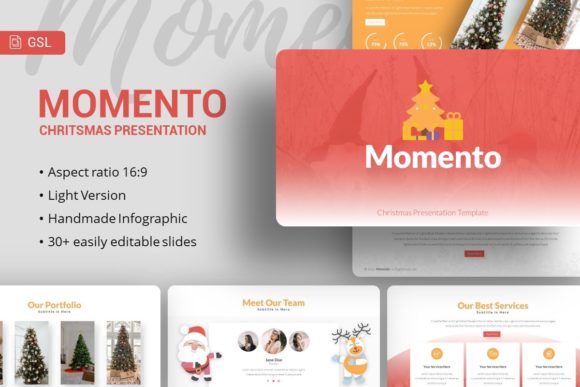
Understanding what makes this template valuable requires looking beyond the aesthetic preview. Momento is designed with 35 unique slides per template set, featuring handcrafted infographics and pixel-perfect illustrations. It serves a broad audience, from startups needing a quick launch deck to educators requiring visual aids. Yet, the most common mistake occurs when users treat these slides as static images rather than dynamic tools. To get the true value from this resource, you must approach it with a strategy that prioritizes functionality over mere decoration.
Overlooking Master Slides and Global Styling
The single most frequent error when using premium templates like Momento is editing individual slides manually instead of utilizing the Master Slide feature. When you open the file, it is tempting to click directly on a text box or shape on the slide canvas to change colors or fonts. While this works for a one-off adjustment, it breaks the global consistency of your presentation. If you need to update your brand color across all 35 slides later, you will find yourself formatting them one by one, which defeats the purpose of using a professional template.
Better Approach: Always navigate to the "Slide Master" view first. Momento is built on master slides specifically to allow global changes. By adjusting typography, color palettes, and logo placement within the master view, you ensure that every new slide you add automatically inherits your branding. This not only saves time but also prevents the subtle misalignments that make a presentation look amateurish. Treat the master slide as your style guide and the individual slides as your content canvas.
Misunderstanding File Compatibility and Formats
A significant source of frustration stems from confusing PowerPoint (.PPTX) files with native Google Slides functionality. The Momento package includes a .PPTX file, documentation, and vector icons. Some users attempt to edit the .PPTX file directly in Google Drive without converting it properly, or they assume all animations and transitions will translate perfectly between platforms. While Google Slides handles imports well, complex handcrafted infographics can sometimes shift during conversion if not managed correctly.
To avoid layout issues, upload the .PPTX file to Google Drive and use the "Open with Google Slides" option to create a native copy immediately. Do not present directly from the uploaded PowerPoint file in preview mode. Once converted, audit the handcrafted infographics. Because these are vector-based and resizable, they should remain crisp, but grouping elements may occasionally ungroup during import. Checking this early prevents panic moments before a live presentation. Remember that while the template is optimized for both platforms, native Google Slides editing ensures the smoothest collaboration experience.
Neglecting Image Placeholder Mechanics
Visuals define the impact of portfolios and creative agency decks. Momento includes picture placeholders designed for drag-and-drop functionality, yet many users bypass this feature entirely. Instead of using the placeholder tool, they insert images directly onto the slide and try to crop and resize them manually to fit the design. This leads to inconsistent aspect ratios, stretched photos, and obscured focal points. It also makes swapping images later a tedious process of reformatting rather than simple replacement.
Practical Correction: Strictly adhere to the drag-and-drop placeholder system included in the template. These placeholders are masked to maintain the designer’s intended composition. When you double-click a placeholder, it opens a cropping interface that preserves the original frame's dimensions. This ensures your photography or product shots always align with the grid system. If a placeholder shape does not suit your specific image, adjust the mask within the placeholder settings rather than deleting the frame and inserting a raw image. Maintaining the structural integrity of the template is key to preserving its professional polish.
Assuming Preview Assets Are Included
Disappointment often arises when users realize the stunning lifestyle photography and specific stock images seen in the demo are not part of the downloadable files. The documentation clearly states that all images in the demo are for preview purposes only. Despite this, beginners frequently assume they are purchasing a complete visual package including stock photography. This misunderstanding can stall projects when users have to scramble to source their own visuals at the last minute.
Before purchasing or starting your design, audit your existing asset library. Ensure you have high-resolution images that match the tone of the Momento template. Since the template supports personal portfolios and creative agencies, the quality of your inserted images will dictate the final perception more than the slide layout itself. Use the template’s clean, minimalist backgrounds to highlight your own content rather than relying on the demo’s aesthetic to carry the weight. Viewing the template as a vessel for your content, rather than a finished product, sets realistic expectations and leads to better outcomes.
Underutilizing Vector Icons and Infographics
Momento comes with vector icons and editable infographics, but many presenters leave these features untouched, opting instead for generic clip art or text-heavy bullet points. This is a missed opportunity for visual communication. Handcrafted infographics are designed to break down complex data into digestible visuals. Ignoring them results in slides that look like standard documents projected on a screen, reducing engagement and retention.
Take time to explore the included icon pack and infographic slides. Because they are fully editable vectors, you can change their colors to match your brand identity instantly. For example, if you are creating a startup pitch deck, use the provided timeline or chart infographics to visualize growth metrics rather than listing numbers. Customizing these elements takes slightly longer than typing a list, but the return on investment regarding audience comprehension is substantial. Just ensure you ungroup vector elements carefully if you need to modify individual components, keeping a backup copy of the original slide in case of editing errors.
Failing to Audit Before Finalizing
Rushing to export is the final pitfall. After customizing your 35 slides, it is essential to run through the presentation in "Present" mode rather than just scrolling through the editor. Transitions, hyperlinks, and animation timings behave differently in playback mode. Additionally, check how the template renders on different screen sizes if you plan to share it digitally. What looks perfect on a widescreen monitor might have safe-zone issues on a projector or tablet.
Create a pre-flight checklist specific to the Momento template. Verify that all master slide changes have propagated correctly, confirm that no demo images remain, test all interactive elements, and ensure font rendering is consistent. This corrective step separates polished professionals from amateurs. By respecting the architecture of the template and avoiding these common oversights, you transform Google Slides Template - Momento from a simple download into a powerful communication asset that elevates your personal or business brand.